How to Download Poshan Tracker App (Official & Safe Method – 2026 Guide)
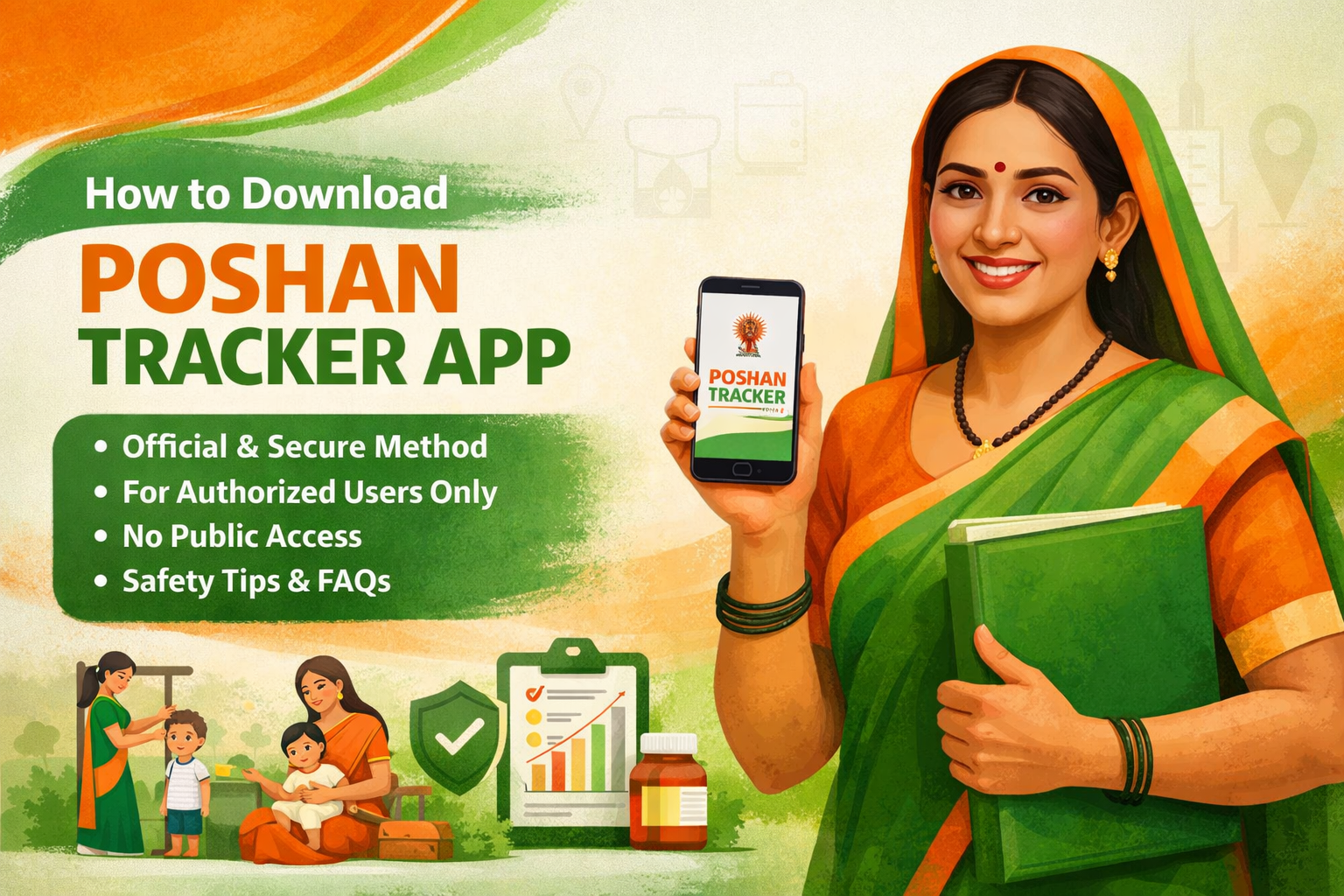
If you are looking for the correct way to download the Poshan Tracker App, always use the official and secure method. This app is developed for government authorized use, so it should only be installed from trusted sources.
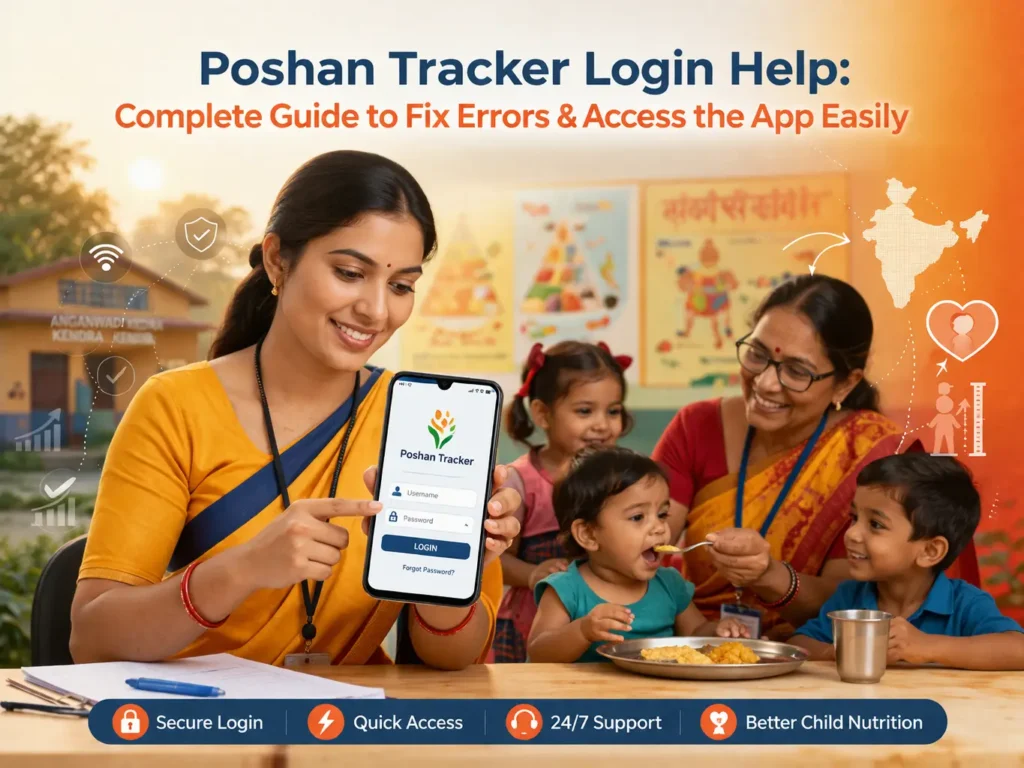
The Poshan Tracker App is mainly intended for:
- Anganwadi Workers
- Supervisors
- CDPO Officers
- Health Department Staff
- ICDS Field Teams
The Poshan Tracker App is not designed for general public use. It is an official government platform created for authorized field staff who manage nutrition, health, and child growth records. Because of this, users should avoid downloading it from unofficial websites or unknown sources.
Poshan Tracker is a digital monitoring system that helps officials record and track child nutrition and growth data more effectively. It enables Anganwadi workers and related health staff to update information in real time, making reporting faster and more accurate. The platform also supports early identification of malnutrition and helps improve child health monitoring at the field level. Its simple and practical interface makes daily use easier for authorized workers.
Before installing the app, make sure your device has enough storage space and a stable internet connection. For safety and proper functionality, the Poshan Tracker App 2026 should always be downloaded through the official government source or a trusted app store link provided by the concerned department.
What is Poshan Tracker App?
Poshan Tracker is an official application launched by the Government of India under the Poshan Abhiyaan program. It is managed by the National eGovernance Division and is designed to support real time monitoring of important health and nutrition related records.
The platform helps authorized users manage and track:
- Child growth data
- Maternal health records
- THR distribution
- Immunization tracking
- Anganwadi attendance
Poshan Tracker.in works through a role based login system, which means only approved and authorized users can access the platform. This ensures better data security, controlled access, and proper monitoring by the concerned departments.
Method 1: Download from Google Play Store
The safest and official way to download the Poshan Tracker App is through the Google Play Store. To avoid security risks, always check the publisher details before installing the app.
Step-by-Step Instructions
Step 1:
Open the Google Play Store on your Android device.
Step 2:
In the search bar, type Poshan Tracker and look for the official app.
Step 3:
Check the publisher name carefully. It should appear as:
National eGovernance Division, Government of India
Step 4:
If the publisher name matches, tap Install.
Step 5:
Once the installation is complete, open the app and sign in using your department-issued login credentials.
Important:
Do not install the app if the publisher name is different, as it may not be the official version.
Important Security Warning:
Never download the Poshan Tracker App from:
- APK files shared on third-party websites
- WhatsApp forwarded links
- Telegram groups
- Unknown APK download portals
Unofficial APK files can:
- Steal your login credentials
- Contain malware or harmful software
- Damage or corrupt important growth data
- Violate department rules and official usage policies
- Always use official channels to download and install the app safely.
Method 2: Department-Issued Device Installation
In many states, the Poshan Tracker App is already managed through official government systems. In some cases, government issued smartphones come with the app pre installed. In others, the installation is controlled through MDM (Mobile Device Management), while updates are handled by IT coordinators or the concerned technical team.
If you are unable to find the app on your device, you should:
- Contact your Supervisor
- Contact the CDPO office
- Ask district Poshan technical support
- Do not try to install random APK files from unofficial sources.
Device Requirements (Before Installation):
| Requirement | Details |
|---|---|
| Android Version | 6.0 or above |
| Storage | Minimum 200MB free |
| Internet | Required for login & sync |
| GPS | Must be enabled |
| Play Services | Updated version required |
Why Some People Cannot Use the Poshan Tracker App
Here is a clean and humanized rewrite without bold text:
This is the part where many blogs create confusion for readers.
Even if you successfully download the Poshan Tracker app, you still cannot use it without official login credentials. Access is restricted because the platform is designed only for authorized government staff.
Login access is provided only to:
- Registered Anganwadi Workers
- ICDS Supervisors
- CDPO Officers
- State Admins
Public users cannot create accounts on their own, which means manual registration is not available for general users.
Poshan tracker App Permissions Explained
The Poshan Tracker app may request the following permissions to function properly:
→ Location – to verify the authenticity of field visits
→ Camera – for capturing photos during growth monitoring
→ Storage – for uploading and saving records
→ Internet – for syncing data with the central database
These permissions help maintain data integrity and improve monitoring accuracy.
Common Installation Problems & Real Solutions
- App Not Showing in Play Store
If the Poshan Tracker app is not दिखाई / not appearing in the Play Store, first check a few basic things on your device. Make sure your Android version is supported, confirm whether the app is available in your country or region, and ensure that your Google Play Store is updated to the latest version.
Check:
- Android version
- Country availability
- Play Store updates
- “Device Not Compatible” Error
If you see a device compatibility error, it usually means your phone does not meet the app’s technical requirements. This can happen if the device is too old, does not support GPS properly, or is running modified or unofficial software.
Your device may:
- Be outdated
- Lack GPS
- Have modified software
Solution:
- Use a department-approved device
- App Crashing After Installation
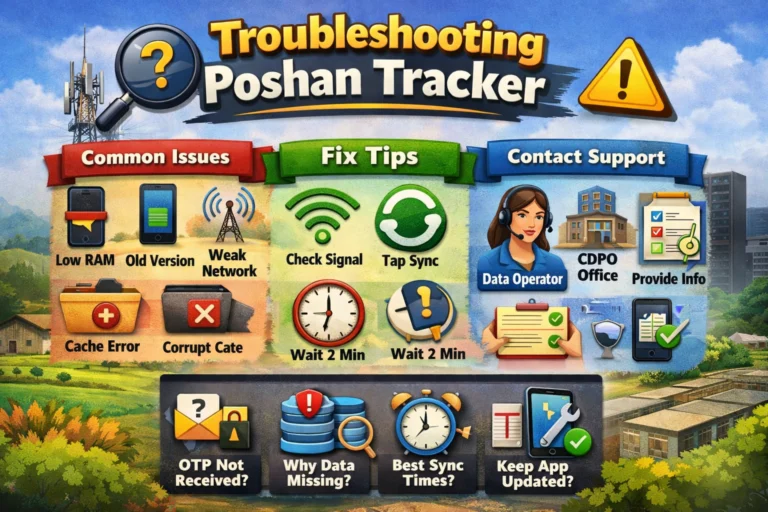
If the app installs successfully but keeps crashing, try a few simple troubleshooting steps first. Clear the app cache, restart your phone, and then reinstall the app directly from the Google Play Store. If the issue still continues, report it to the district IT team for further support.
Try:
- Clear cache
- Restart phone
- Reinstall from Play Store
If the problem continues:
- Inform the district IT team